Friday, 25 March 2016

Format Painter in Excel

Hello friends,

                      today we will discuss about a important function called Format Painter in excel.


With the help of below given example it will be easy for us to understand the function.
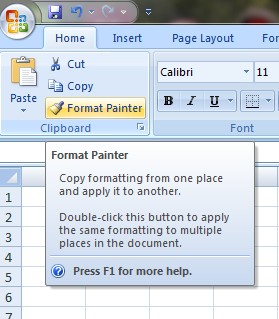
Here we can see that in cell A1 there is a text in bold, italic and underline format but the same text we can see in a different cell A3 but this is neither bold nor italic and underline, but if we take our cursor to cell A1 and click from mouse on the above shown Format Painter brush  icon and click on icon and paste the same to the cell i.e. A3 to change the format like the cell A1


It will be look like as follows that cell A3 has become same as cell A1 bold, italic and underlined.


Shortcut for above cell format like bold, italic and underline

Cntr B, for Bold, Cntr U for Underline and Cntr I for Italic

Simply Cntr B,U,I

So by this way we can use this tool to change format without going to format a cell option.


Thanks and good bye for now!


Narendra


Thursday, 24 March 2016

Picking a Random Name from given list


Today we will discuss about random list i.e. how to look for a random name in the given excel list.

Here below we have a excel list from range A1:A14, and in range B2 there is value "Vimal" but the fact is cell B2 has a formula i.e. INDEX and RANDBETWEEN both formula has separate solution like Index has a list of names and randbetween has to pick any name from the give list so below is the example and we can understand in a very easy way.


Here in this example we are watching in this list A1:A14 it has 14 names so if we want  any name from this list, so put a randbetween formula, randbetween formula look for any no. value from the given range. And what index function does, it provides a list range as an array like range A1:A14
so simple index function provides a range and randbetween look for any no. value i.e. name from the list. So easily we can get the random no. or name from the given list.

Thanks

Narendra


Sunday, 13 March 2016

If or Nested If function in Excel

             Today I am writing about If or Nested If function in Excel.


If or Nested If function are both same function. Basically these are conditional function , like :-(if this value is 50 then what and if this value is greater or less than 50 then what) so these kind of condition we deals in If or Nested If function.

This function are useful in rating or grading system, same as preparing a marks sheet for the student or doing some grading  system of job in the office.

Here are some example

Example No 1.

Here in this example we can see that  in column A names are mentioned and in column B the score of the respective name and in column C the result is appearing according to their score like average, good, excellent and so on.


Example No. 2

Here in this example we can see the result in grade system but what is additional in this example that here you can see AND function.

I put another condition in this example like should be B2 >33 but should (less than) B2 <45, similarly B2>45 but (less than) B2<55, so these are the condition I have added in this example. So we can use this two condition also.


Example No. 3

In this example we see that there are two condition Pass or Fail and there is score also. simply we are putting the formula and according to the score the result appearing in column C.


So there are the If o Nested If example.

We can not say that this is the only use of this function but we can use If function in many ways and it depends upon the logic we can apply. We can use this function as many ways and I am sure that we we will use this function in future also because this is a very very useful function.

So goodbye for now

Narendra


Friday, 11 March 2016

Some Excel shortcuts

Hello friends,


                    Here are some excel essential keyboard shortcuts keys :-

1.                 Time                                                    CNTR+SHIFT+:

2.                 Date                                                     CNTR+;

3.                 Copy data from above cell                  CNTR+' and CNTR+D

4.                 Giving a line break in a cell                ALT + ENTER

There are a lot more keyboard shortcut keys in Excel but I will discussed in the future post.


Goodbye for now

Narendra

Sunday, 28 February 2016

Sum function in Excel

Hello friends,
                       today we will discuss about  SUM function in Excel. Here in this below given  example in column A has some item and column B has its value and in cell B9 has the sum of all these items located in column A.
 
Simply I put the formula =SUM(B1:B7) and suddenly the sum appears in the cell B9, so this is the simple formula for doing sum quickly.


we can count the cell value manually but these are only seven items and it is easy to count the cell values manually but where the data is more than 100s of rows then it will be difficulty to count the sum of the commodity, so in this case we use this formula to simply doing sum of all the items value quickly.

Keep learning Excel.

Narendra

Wednesday, 17 February 2016

Substitute function in Excel

Hello friends,

                     today we will talk about Substitute function in Excel. Basically when we use substitute in excel it means totally substitute or change old one text to a new one text, it replace the mentioned text with the new one.

The example is mentioned below as you are seeing that cell A1 has Narentra in cell B1 has (t) and cell C1 has (d), here in this formula we have to substitute (t) from alphabet (d) and the name will become Narendra instead of Narentra.

So the substitute role is to change or replace the desired word from existing word.


Hope that you will come to know the function.

Have a good day.

Narendra

Monday, 15 February 2016

Remove space from Excel Cell

Hello friends,

                   today I am going to tell a small but useful trick to remove space from Excel

Formula name is TRIM and this is very useful formula because in some cases a little space can make you in a big dilemma, formula will not work if there is any space is in the cell, so that remove the space we use TRIM function, and with the help of this formula it will be easy to get the result by putting the formula using TRIM function with that.


So this is a simple trick to remove space and we will discuss some more function to remove space from excel in the coming tutorial.

Goodbye for now.


Narendra


Featured post

Pivot Tables

Pivot Tables are one of the most useful tool in excel, and most excel experts says that this tool is the magic tool for quickly prepar...